
Wall displays
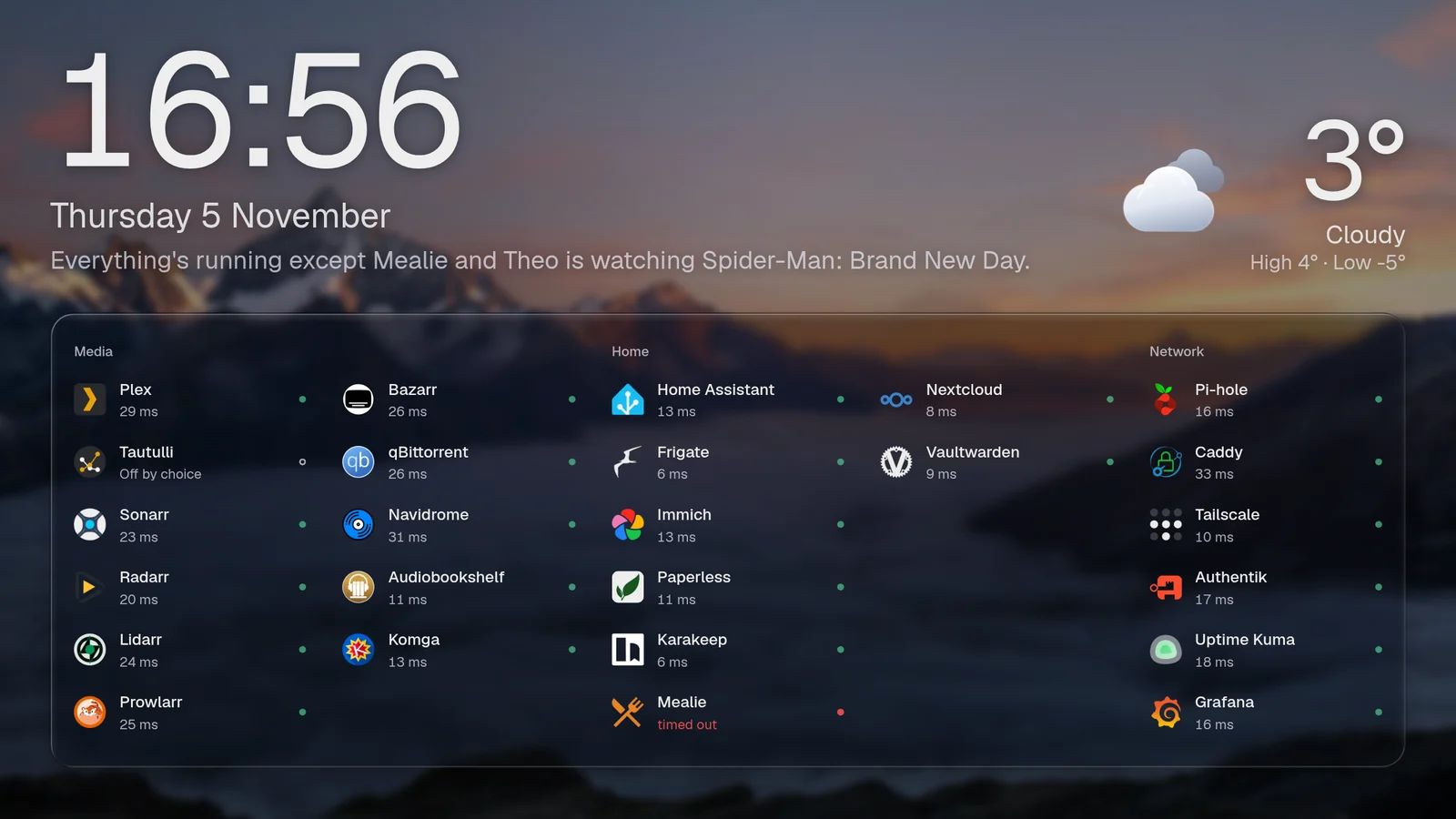
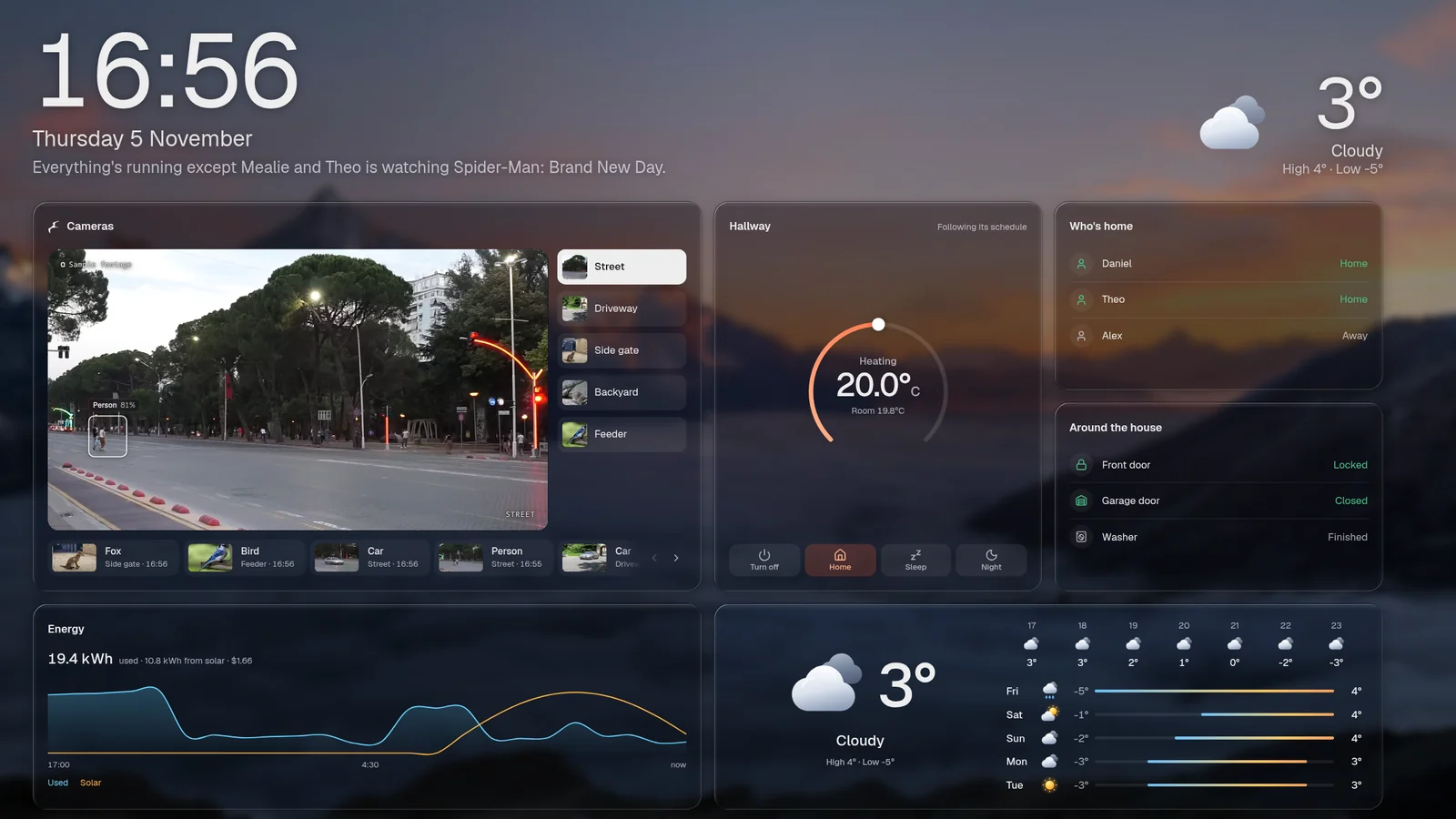
Open /wall, or pick Wall display in ⌘K, and Valet becomes a screen to read from across the room: the time and the weather large across the top, and the cards you chose below, sized to fill the screen. It’s made for a tablet on the wall or a spare monitor beside the server.
The wall is its own page. It doesn’t follow the main layout, so you decide exactly what’s on it, and changing one leaves the other alone.
It only shows
Section titled “It only shows”Whoever is signed in, the wall never acts. There’s no chat, no ask box, no ⌘K, no editing, and no buttons or links. A card that has controls, like a thermostat, shows them read-only. Touching the screen only holds the page it’s on.
Out of the box
Section titled “Out of the box”With no wall: in your config, the wall shows the time and weather, your services, and what’s playing or downloading, taken from the main page.
Your own pages
Section titled “Your own pages”Each page is a layout, written exactly like the main one: sections, widgets, sizes, columns (a count per screen too), a card’s own cols and rows, display. Pages take turns.
wall: every: 1m # how long each page stays pause: 2m # after a touch, how long it stays put night: { from: sunset, to: sunrise, dim: 0.9 } pages: - title: Now layout: - widgets: [plex.streams, qbit.downloads] columns: 2 - display: tiles widgets: [system.tiles] - title: House every: 30s layout: - columns: { phone: 1, tablet: 2, desktop: 4 } widgets: - { widget: frigate.cameras, cols: 2, rows: 2 } - { widget: ha.thermostat, rows: 2 } - ha.people - ha.doors - { widget: ha.energy, cols: 2 } - { widget: weather.forecast, cols: 2 } - title: Services clock: false # no time and weather on this one layout: - widgets: [uptime.status] columns: 1One page needs no pages:. Write layout: straight under wall:.
A page that holds more than fits is shrunk to fit, so keep each page to what you’d read at a glance. Cards that are empty, like Now playing with nothing playing, give their space back. config check names any card the wall asks for that doesn’t exist.
To keep one page on a screen, open /wall?page=House. Two screens can show two different pages that way.
From sunset to sunrise the wall dims, nearly to black, and comes back slowly in the morning. Sunset and sunrise come from the weather; without it, night is 21:00 to 07:00. Set your own times with night: { from: "22:30", to: "06:45" }, change how dark with dim (0 to 0.95), or turn it off with night: false. A touch lifts the dimming for a while.
The wall is dark, a wallpaper or not, since it’s often read in a dim room. With appearance.theme: system it follows the screen’s own light or dark mode instead.
If your system asks for reduced motion, or appearance.motion does, pages change without fading.
Keeping the screen on
Section titled “Keeping the screen on”The wall asks the browser to keep the screen awake while it’s open. Browsers only allow that over https, or on localhost. Behind your reverse proxy with a certificate, it just works. Over plain http, set the tablet’s own screen timeout to never.
A screen that can’t sign in
Section titled “A screen that can’t sign in”A wall tablet usually has nobody to type a password. Give the wall a token, and pair the screen once:
wall: token: ${VALET_WALL_TOKEN} # openssl rand -hex 32, in .envThen open https://valet.example.com/wall#key=<the token> on the tablet. The key leaves the address bar at once, and the browser keeps a cookie that reads the wall and nothing else. It can’t open the main page, the chat or any other card, and it can’t act. To unpair every screen, change the token. See the threat model for exactly what it can read.
With sign-in off, there’s nothing to pair: the wall is as open as the page is.
Setting up a tablet
Section titled “Setting up a tablet”- Android: Fully Kiosk Browser runs one page full screen, keeps the screen on, and can turn it off on a schedule. Point it at
/wall. Chrome’s Add to Home screen opens it without the address bar too. - iPad: open
/wallin Safari, Share → Add to Home Screen, then lock it there with Guided Access (Settings → Accessibility). Turn Auto-Lock off. - A monitor on a Linux box:
chromium --kiosk --noerrdialogs https://valet.example.com/wall. - A TV: any browser that goes full screen. The wall grows with the screen, and
scalemakes it bigger or smaller.
The pointer hides after a few seconds, and nothing on the wall needs hovering.