
Valet as an app
Valet can sit on your Home Screen and in your dock like any other app, and it can send notifications to that device itself. You don’t need ntfy, Telegram or anything else for that.
What it needs
Section titled “What it needs”- HTTPS. Browsers only install apps and allow notifications from a secure address. Put Valet behind your reverse proxy with a certificate (see sign-in and network safety).
http://localhostalso counts, which is handy for trying it. A plainhttp://address on your network, likehttp://10.0.0.5:7575, doesn’t. - A page that may act, for notifications. Turning them on changes something, so it needs what a button needs: sign-in, or
auth.trustNetworkon a private network. Installing works either way.
Install it
Section titled “Install it”- iPhone and iPad: open Valet in Safari, tap Share, then Add to Home Screen.
- Android: open Valet in Chrome, open the menu and tap Add to home screen or Install app.
- Chrome and Edge on a computer: click the install icon at the end of the address bar.
- Safari on a Mac: File, then Add to Dock.
It opens in its own window, without the browser’s bars, and takes your config’s title as its name once you’re signed in.
Turn on notifications
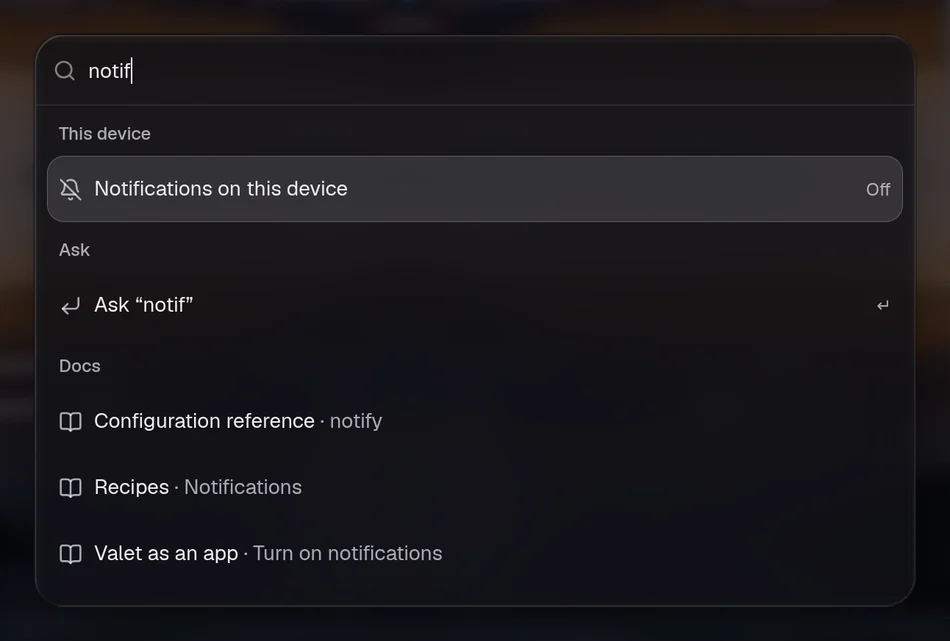
Section titled “Turn on notifications”On the device, open ⌘K (the search bar on a phone), type notifications and pick Notifications on this device. The browser asks for permission only then. A first notification arrives straight away, so you know it works.
Pick it again to turn them off. Signing out from ⌘K turns them off on that device too.
On iPhone and iPad, add Valet to the Home Screen first and turn notifications on from the app there. Apple only allows notifications for web apps on the Home Screen. In Safari, the switch says so.
What you’re told
Section titled “What you’re told”Everything that already goes to your notification channels goes to these devices too:
- reminders (“tell me when this finishes”)
- rules when they run, or can’t
- notices in
live.notifywithpush: true - the assistant’s shared-cause line, with
notify.insights: true
A notification opens Valet on the tab that holds the widget it’s about. Something urgent, like a service going down, stays on screen until you deal with it.
Settings
Section titled “Settings”Nothing to set for most people. It’s on by default, and it sends nothing until a device turns it on.
notify: webPush: enabled: true # false: no device can turn them on, and nothing is sent contact: mailto:[email protected] # how a push service can reach you; defaults to https://askvalet.devservices lists the push services Valet will post to. Browsers use Google’s, Apple’s, Mozilla’s and Microsoft’s, which are the default, so you’d only add to it for a push server of your own. See the reference.
Offline
Section titled “Offline”Valet installs a small service worker. When the server can’t be reached, the app says Valet can’t be reached instead of the browser’s error page, and that’s all it keeps. It never shows an old copy of the page or your data, so nothing is out of date, and nothing private stays on the device. See what’s kept and where.
The demo
Section titled “The demo”The demo installs like the real thing, but it has no server to send notifications from. Its switch explains that.
If it doesn’t work
Section titled “If it doesn’t work”- The switch says the page came over plain HTTP: put Valet on HTTPS.
- Notifications are blocked: you said no to the browser’s question once. Allow them in the site’s settings and pick the switch again.
- Nothing arrives on Android: check that battery saving isn’t stopping the browser in the background.
- The server log says
push to … answered 403: the push service refused Valet’s signature. Check the server’s clock, then turn notifications off and on again on that device.